Visualization
The web app provides five distinct views for understanding and interacting with a Rhylthyme program. Switch between them using the view toggle bar at the bottom of the main content area.
Program Info Bar
At the top of the visualization, a compact info bar displays key program metadata:
- Total Time -- The calculated total duration of the program
- Schema Version -- The Rhylthyme schema version (e.g.,
0.1.0) - Environment Type -- The environment the program is designed for (kitchen, laboratory, etc.), if specified
- Resource Constraints -- A summary of the resource limits defined in the program
- Tracks -- The number of parallel execution tracks
Views
DAG View
The DAG (Directed Acyclic Graph) view shows the dependency structure of the program as a node-link diagram. Each step is a node, and edges represent dependencies (start triggers).
Key features:
- Color-coded by track -- Each track has a distinct color so you can see which steps belong together.
- Node details on hover -- Hovering over a node reveals the step name, description, task assignment, and duration.
- Video tooltips -- For programs with embedded media (like the Sunny Side Up Eggs example), hovering over a step shows the associated video clip.
- Program Start node -- A virtual "Program Start" node at the top shows which steps begin at program start.
- Buffer indicators -- Pre-buffer and post-buffer times are displayed on edges where applicable.
Timeline View
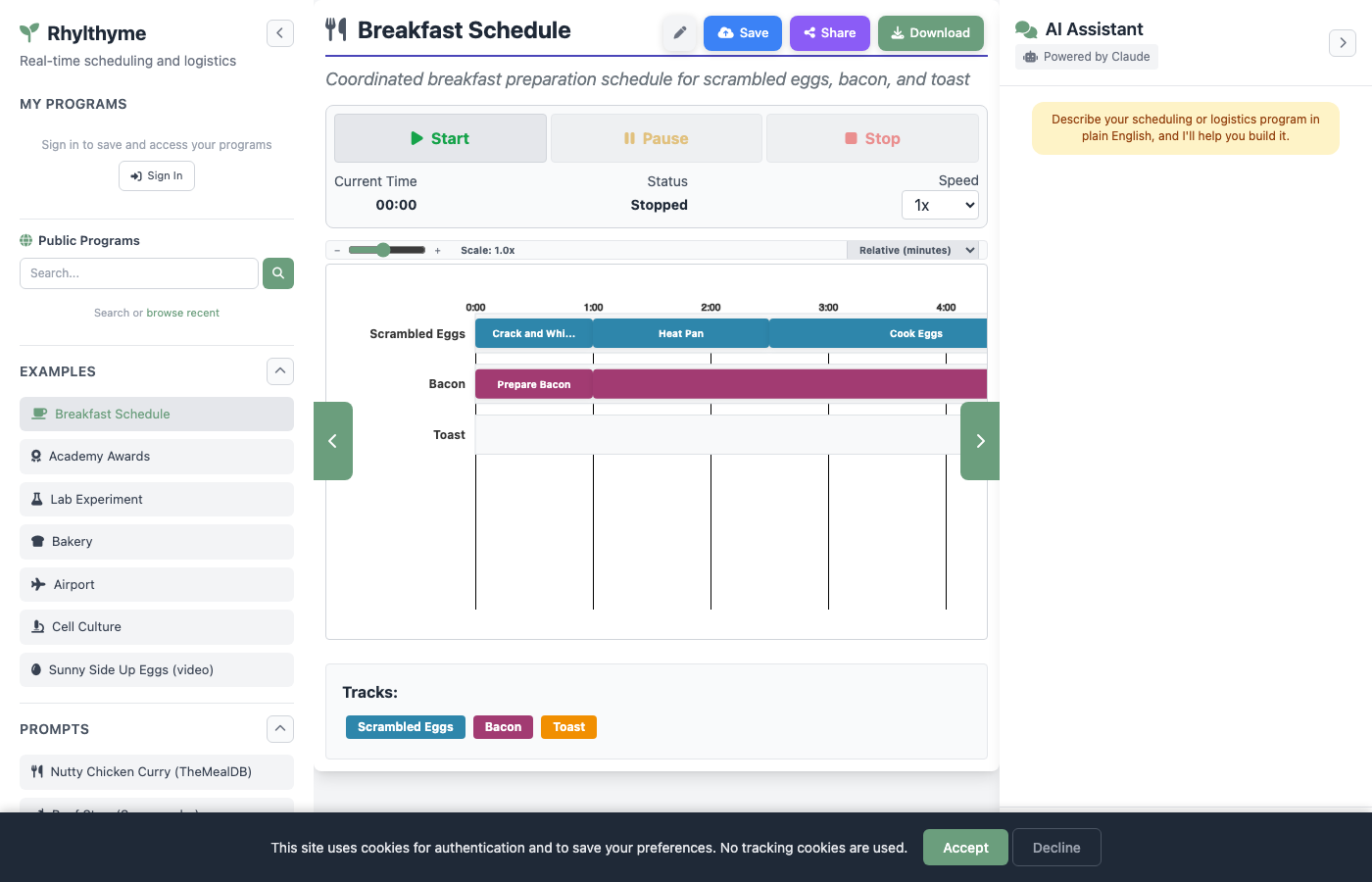
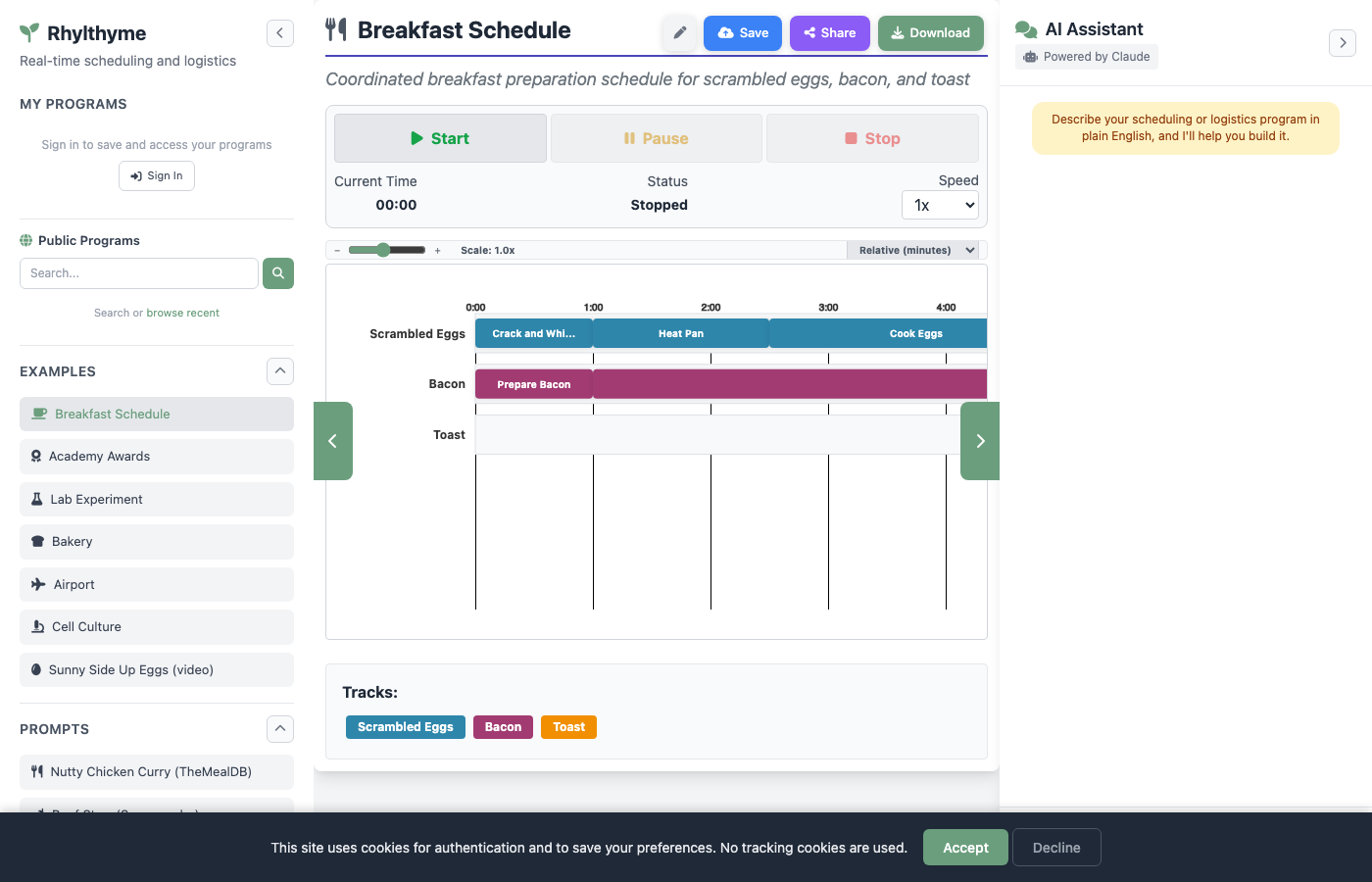
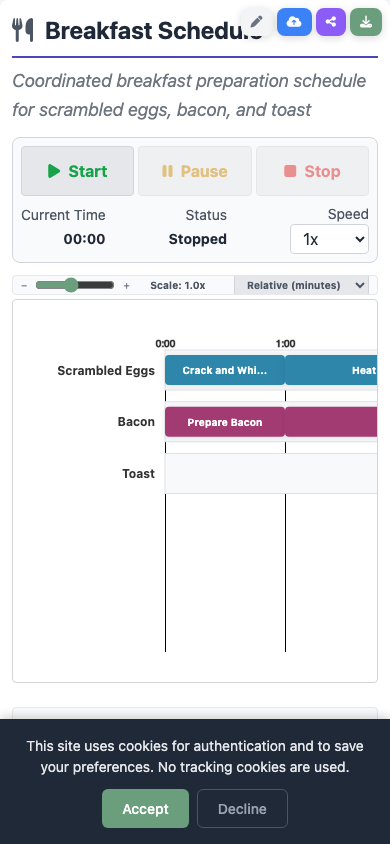
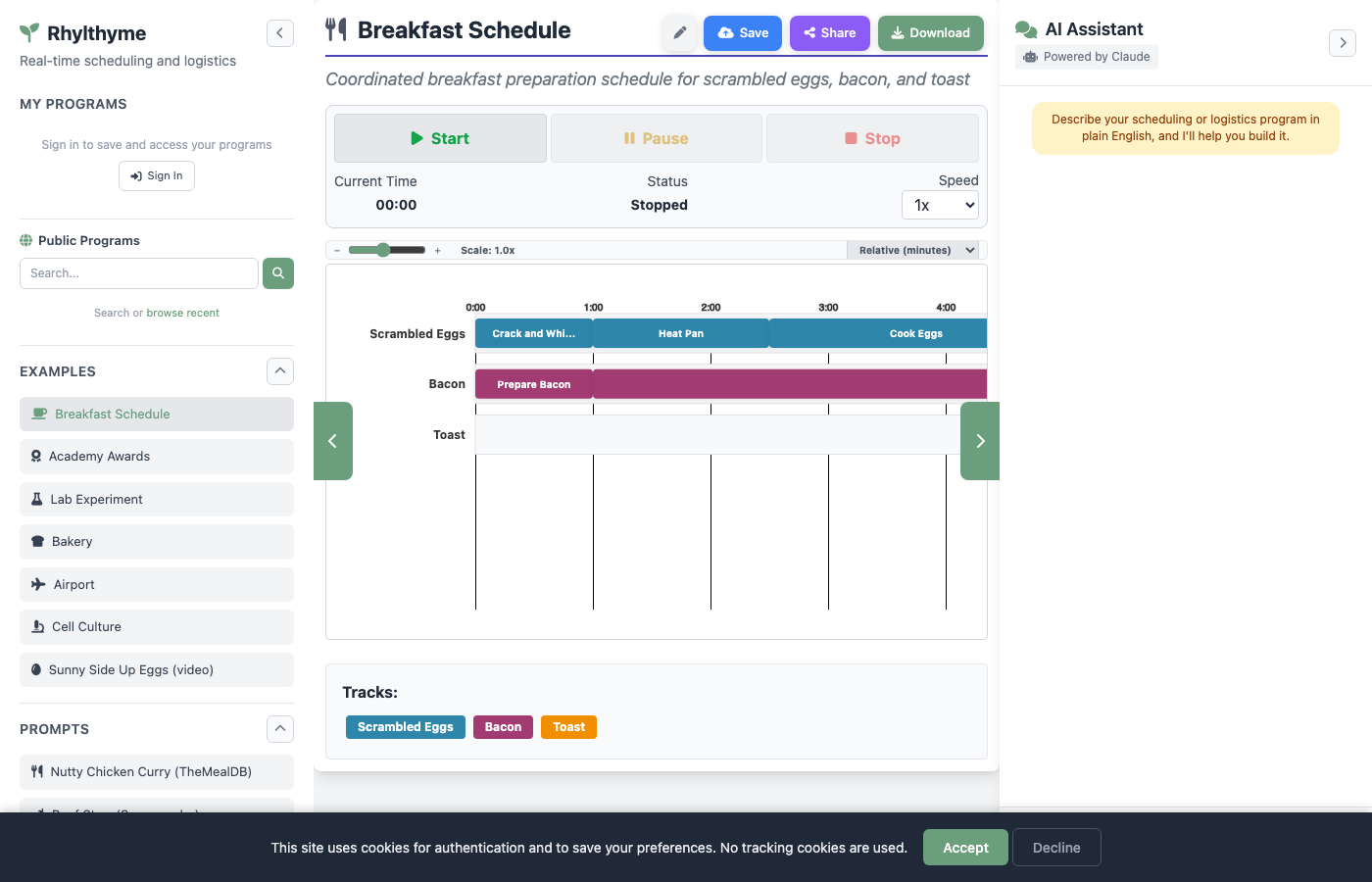
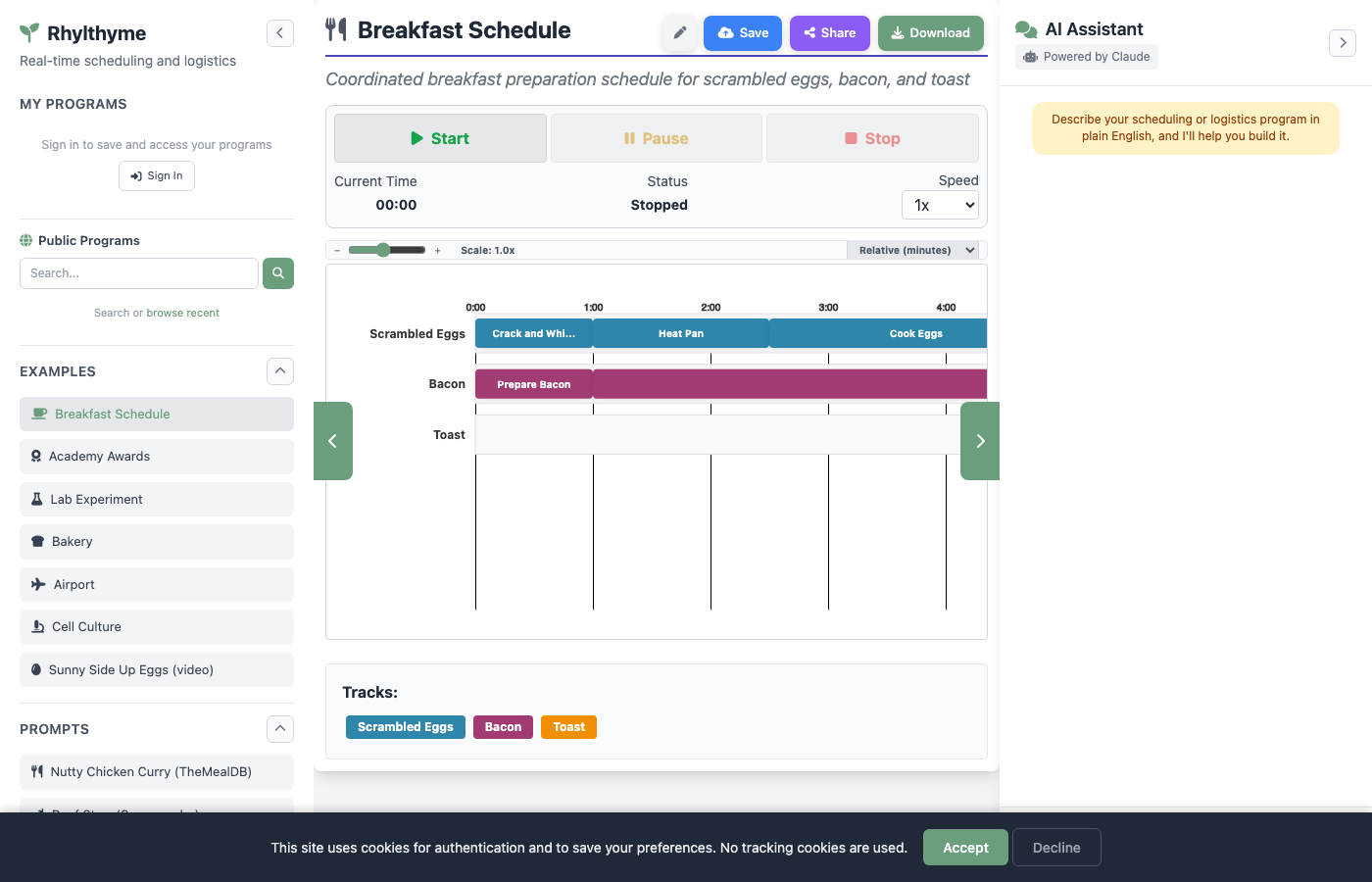
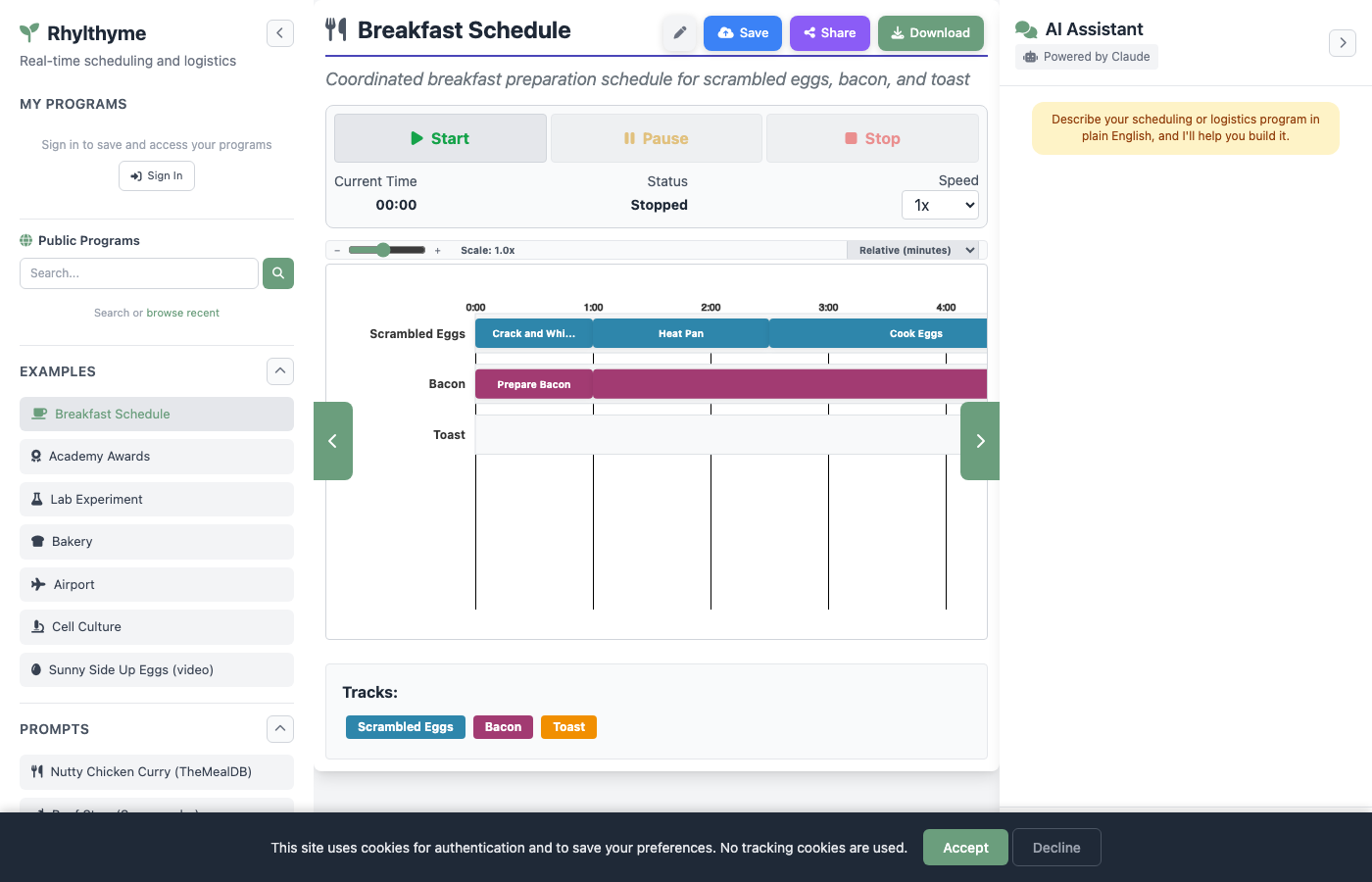
The Timeline view presents the program as a Gantt-style chart with tracks on the vertical axis and time on the horizontal axis.
Key features:
- Tracks and steps -- Each track is a horizontal lane containing colored bars for its steps.
- Time axis -- The horizontal axis shows elapsed time with configurable scale (seconds, minutes, hours).
- Zoom and scale controls -- Adjust the time scale and zoom level to see the full program or focus on a section.
- Progress bar during execution -- When a program is running, a vertical progress line moves across the chart and step bars fill to show completion.
- Step labels -- Each bar displays the step name and task type.
Resources View
The Resources view shows how the program uses its declared resource constraints over time.
Key features:
- Per-resource charts -- Each resource constraint (e.g., "stove-burner", "prep-station") gets its own chart.
- Peak usage indicator -- Shows the maximum concurrent usage of each resource and whether it approaches or hits the limit.
- Utilization percentage -- Displays the overall utilization of each resource across the program duration.
- Capacity line -- A horizontal line marks the
maxConcurrentlimit for each resource.
Itinerary View
The Itinerary view presents the program as a chronological, step-by-step list -- similar to a printed recipe or lab protocol.
Key features:
- Chronological ordering -- Steps are listed in the order they start, regardless of which track they belong to.
- Step details -- Each entry shows the step name, track, task, start time, duration, and description.
- Elapsed and remaining time -- During execution, each step shows how much time has elapsed and how much remains.
- Status indicators -- Steps are marked as upcoming, active, or complete during execution.
Editor View
The Editor view provides a JSON editor for directly viewing and modifying the program source.
Key features:
- Syntax-highlighted JSON -- The full program JSON is displayed in an editable text area.
- Format button -- Automatically formats the JSON with consistent indentation.
- Save & Regenerate -- After making changes, click this button to re-validate and re-visualize the modified program. The updated program replaces the current visualization across all views.
Editor Changes Are Not Auto-Saved
Changes made in the Editor view only take effect when you click "Save & Regenerate." If you switch to another view or load a different program, your edits will be lost unless you save first.
Program Execution
The execution panel sits between the program info bar and the visualization views. It provides controls for running the program in simulated real time.
Controls
| Control | Description |
|---|---|
| Start | Begin or resume program execution from the current position |
| Pause | Pause execution at the current time |
| Stop | Stop execution and reset to the beginning |
| Current Time | Displays the current elapsed time in the program |
| Speed Selector | Adjust execution speed (e.g., 1x, 2x, 5x, 10x, 50x, 100x) |
| Settings | Open the visualization settings modal |
Execution Behavior
When you start execution:
- The Timeline view shows a moving progress line and fills step bars as they complete.
- The Itinerary view updates each step's elapsed/remaining time and marks steps as active or complete.
- The execution status in the control panel updates to show "Running", "Paused", or "Stopped."
- The current time display ticks forward according to the selected speed.
Speed Control
Use higher speed multipliers to preview long programs quickly. A 30-minute breakfast schedule at 100x speed completes in about 18 seconds.
Settings
The Settings modal (accessible from the gear icon in the execution panel) allows you to customize:
- Theme -- Color scheme and visual preferences
- Timeline display -- Scale, zoom, and label options
- Execution defaults -- Default speed and auto-start behavior
Settings are persisted in browser cookies so they carry over between sessions.
Actions Bar
When a program is loaded, three action buttons appear in the top-right corner of the main content area:
| Button | Action |
|---|---|
| Save | Save the program to your account (requires sign-in) |
| Share | Generate a share link and copy it to the clipboard (requires sign-in) |
| Download | Download the program as a .json file to your computer |
There is also a pencil icon to edit the program title, which sets the display name used when saving.
Download Is Always Available
The Download button works without signing in. Save and Share require an account.