AI Chat Assistant
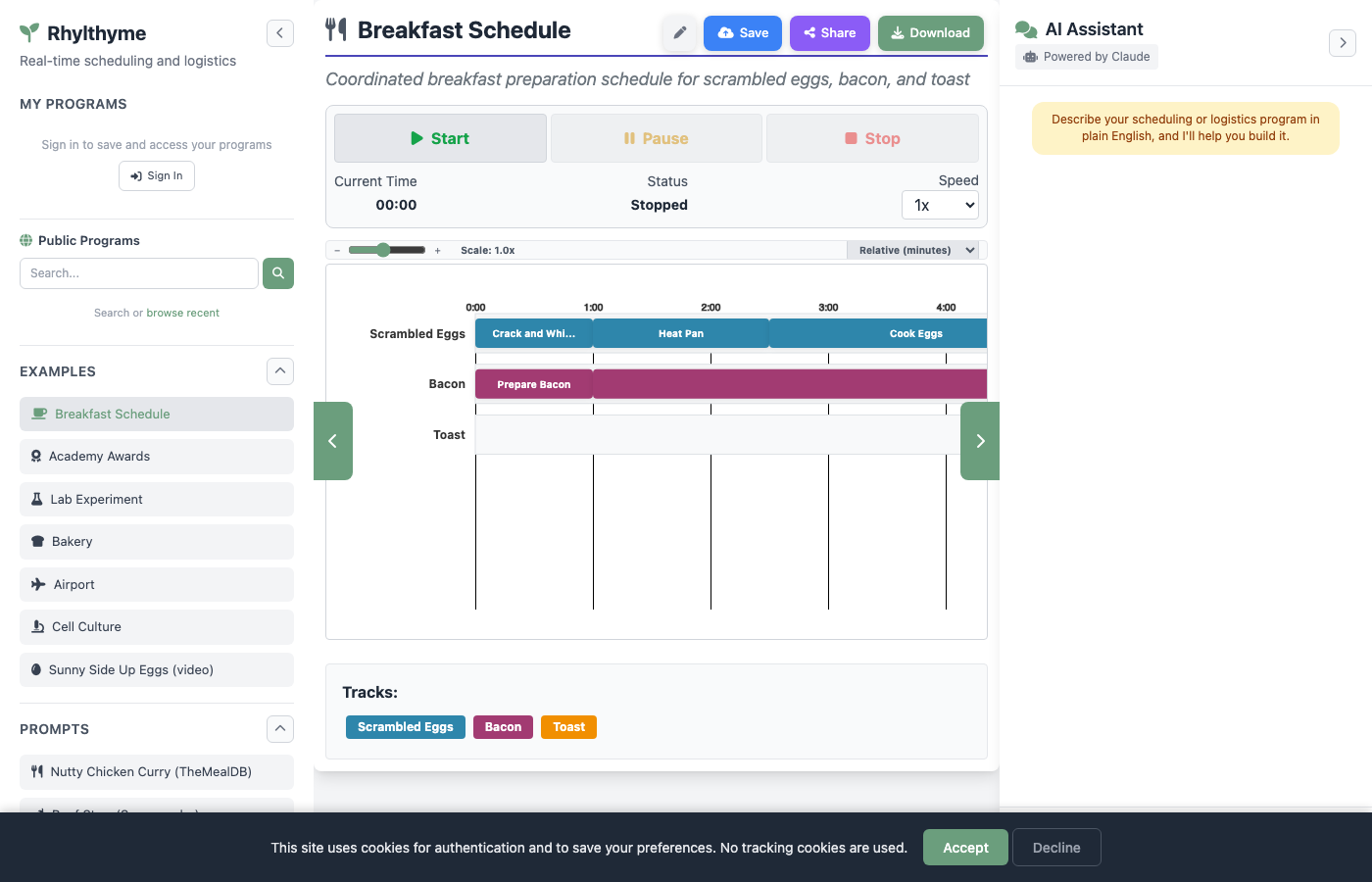
The right sidebar of the web app contains an AI chat assistant powered by Claude. It can generate Rhylthyme programs from natural language descriptions and import programs from external data sources.
Using the Chat
- Type a description of your scheduling or logistics problem into the text field at the bottom of the chat panel.
- Press Enter or click the send button.
- The assistant processes your request and either:
- Generates a program directly and auto-visualizes it, or
- Asks clarifying questions about details like timing, resource constraints, or step dependencies before generating.
The chat maintains conversation history, so you can have a multi-turn conversation to refine the program.
Example Conversations
You: Create a schedule for making a grilled cheese sandwich
The assistant generates a complete program with tracks, steps, timings, and resource constraints, then auto-visualizes it.
You: I need a schedule for a chemistry lab with three parallel experiments
Assistant: I'd like to clarify a few details. How many lab benches are available? What equipment does each experiment need?
You: 2 lab benches, each experiment needs a centrifuge and a spectrophotometer. We only have 1 of each.
Assistant: [generates program with resource constraints]
You: Import a chicken tikka masala recipe from TheMealDB
Assistant: [imports recipe and generates cooking schedule]
You: Add a track for making naan bread alongside the curry
Assistant: [generates updated program with the additional track]
Pre-Built Prompts
The Prompts section in the left sidebar provides one-click access to common import operations:
| Prompt | What It Does |
|---|---|
| Nutty Chicken Curry (TheMealDB) | Imports a recipe from the TheMealDB API and converts it into a cooking schedule |
| Beef Stew (Spoonacular) | Searches the Spoonacular API for a beef stew recipe and generates a schedule |
| RNA Extraction with Trizol (protocols.io) | Imports a lab protocol from protocols.io and creates a laboratory workflow |
Clicking a prompt sends it directly to the chat assistant, which calls the appropriate import tool and generates the program.
How It Works
Behind the scenes, the chat uses a tool-use loop:
- Your message is sent to the
/api/chatendpoint along with the conversation history. - The backend calls the Claude API with two available tools:
visualize_program-- Generates a valid Rhylthyme program JSON.import_from_source-- Queries an external importer (TheMealDB, Spoonacular, or protocols.io) to fetch data and convert it into a program.
- Claude may call one or both tools, or ask follow-up questions before generating.
- When a program is produced, it is automatically sent to the visualization pipeline and displayed in the main content area.
The tool-use loop supports up to 5 iterations, allowing the assistant to import data, refine it, and then generate the final program in a single conversation turn.
Supported Import Sources
The chat assistant can import from these external sources:
| Source | Type | Description |
|---|---|---|
| TheMealDB | Recipes | Free meal database with ingredients and instructions |
| Spoonacular | Recipes | Recipe API with nutritional data and cooking instructions |
| protocols.io | Lab Protocols | Open-access repository of scientific protocols |
When importing, the assistant converts the external data into proper Rhylthyme program structure with tracks, steps, timing estimates, task assignments, and resource constraints.
Chat Panel Controls
The chat panel is collapsible and resizable:
- Collapse/expand -- Click the toggle button in the chat header or the tab on the left edge of the panel.
- Resize -- Drag the left edge of the chat panel to make it wider or narrower.
- Clear conversation -- Reload the page to start a fresh conversation.
On mobile, the chat is accessible through the Chat tab in the bottom navigation bar.
Response Formatting
The assistant's responses are rendered with Markdown formatting, so code blocks, lists, and emphasis are displayed properly in the chat.
Self-Hosted Requirement
When running the web app locally, the chat feature requires an ANTHROPIC_API_KEY environment variable to be set. Without it, the chat endpoint will return an error. The hosted version at www.rhylthyme.com has this configured.